How to Create a QR Code: Free, Fast, No Signup
Quick Answer
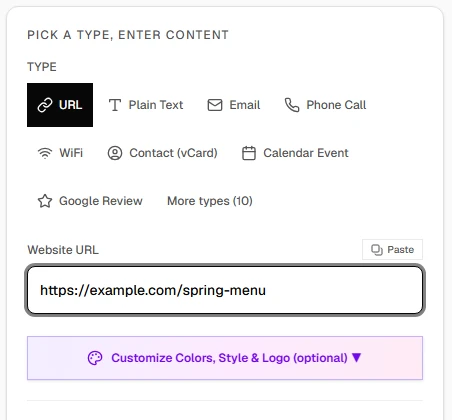
Step 1: Choose Your QR Code Type
Link2QR supports every major QR code type. Pick the one that matches what you want to encode:
- URL - Any website link. The most common QR code type. See how to create a QR code for a link.
- WiFi - Let guests connect to your network by scanning. See WiFi QR code generator.
- vCard Contact - Share your name, phone, email, and address. See vCard QR code.
- Email - Pre-fill the recipient, subject, and body. See email QR code.
- Phone - One scan dials the number. See phone number QR code.
- Event - Add a calendar event with date, time, and location. See event QR code.
- Location - Open a GPS coordinate in Google Maps. See Google Maps QR code.
- Payment - Venmo, PayPal, or Cash App payment links.
- Social Media - Instagram, YouTube, TikTok, LinkedIn, Facebook, Twitter/X, and more.
Step 2: Enter Your Content
What you enter depends on the QR code type you selected:
- URL - Paste the full web address (e.g.,
https://example.com). - WiFi - Enter the network name (SSID), password, and security type (WPA2/WPA3).
- vCard - Fill in name, phone number, email, company, and address.
- Email - Enter the recipient address, subject line, and optional body text.
- Event - Set the event title, start/end date, time, location, and description.
- Social Media - Paste your profile URL or channel link.
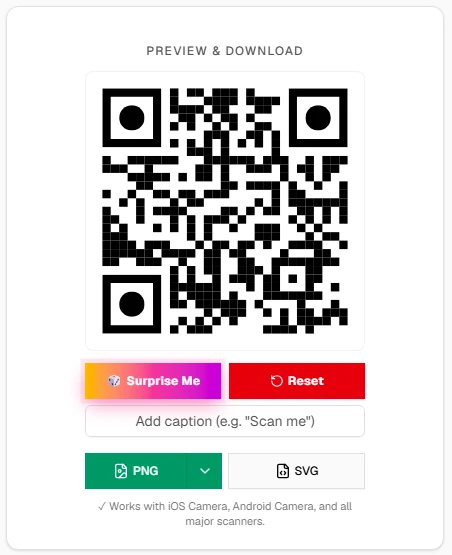
The QR code preview updates in real time as you type, so you can verify the content before downloading.
Advertisements
Step 3: Customize and Download
Before downloading, you can customize your QR code:
- Colors - Change the foreground and background colors to match your brand. Keep high contrast for reliable scanning.
- Logo - Upload a logo to display in the center of the QR code.
- Error Correction - Higher error correction (H) makes the code more resilient to damage but slightly larger.
- Download Format - Choose PNG for digital use, SVG for print (scales to any size without losing quality), or JPG for compatibility.
What Can You Put in a QR Code?
A QR code can encode almost any type of information. Here are the most popular use cases with Link2QR:
- Website URLs - Link to any webpage, landing page, or online store. See the link to QR code guide for tips on turning a URL into a code.
- WiFi credentials - Share your network without revealing the password.
- Contact information - Digital business cards with vCard.
- PDF documents - Menus, brochures, manuals, and resumes.
- Restaurant menus - Contactless menus for dine-in guests.
- Google Reviews - Send customers directly to your review page.
- Calendar events - One scan adds the event to any calendar app.
- Social media profiles -Instagram, YouTube, TikTok, LinkedIn, and more.
- Payment links -Venmo, PayPal, Cash App.
Tips for Creating Effective QR Codes
- Use short URLs - Shorter URLs produce simpler QR codes that scan faster and more reliably.
- Keep high contrast - Dark modules on a light background is the gold standard. Avoid light-on-light or dark-on-dark combinations.
- Test before printing - Always scan your QR code with at least two different phones before printing to verify it works correctly.
- Size it properly - The minimum recommended size depends on scanning distance. See the QR code size guide for detailed recommendations.
- Add a call to action - Print "Scan me" or "Scan for menu" near the QR code so people know what to expect.
Creating QR Codes in Bulk
Need to generate dozens or hundreds of QR codes at once? Link2QR offers a batch QR code generator that lets you upload a CSV of URLs or other data and download all the QR codes in a single ZIP file. Perfect for product packaging, event badges, inventory labels, and marketing campaigns.
Frequently Asked Questions
Is it free to create a QR code?
Yes. Link2QR is 100% free with no premium tiers, no scan limits, and no watermarks. You can create unlimited QR codes for any purpose.
Do I need an account to create a QR code?
No. Link2QR requires no signup, no email address, and no account. Just open the site and start creating QR codes immediately.
What types of QR codes can I create?
You can create QR codes for URLs, WiFi networks, vCard contacts, email addresses, phone numbers, calendar events, geographic locations, payments (Venmo, PayPal, Cash App), and social media profiles.
Will my QR code expire?
No. Static QR codes generated with Link2QR never expire. The data is encoded directly into the QR pattern, so there is no server dependency or expiration date.
What settings do I need to change when I add a logo?
Raise error correction to H before adding a logo - Link2QR shows a scan-risk warning if error correction is left lower. Keep the logo within roughly 20% of the code's area and test-scan the result, since a logo that's too large can still break scanning even at H.
How do I create a QR code for a specific platform?
Link2QR supports dedicated generators for YouTube, Instagram, TikTok, Spotify, LinkedIn, Facebook, Twitter/X, WhatsApp, Zoom, Google Maps, and more. Just pick the platform and paste your profile or content link.
Related Guides & Tools
- QR Code FAQ - Answers to the most common QR code questions.
- Link2QR QR Code Generator - Make a free static QR code, no signup.
- QR Code Templates - Pre-designed QR code styles ready to customize.
- Batch QR Code Generator - Create hundreds of QR codes from a CSV file.