Two ways to brand a QR code
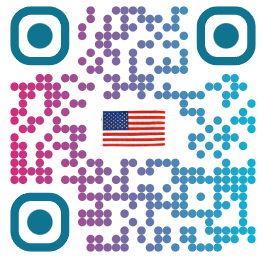
Center logo. The Logo (Optional) upload places your image in the middle of the code. With "Clear space behind logo" ticked (the default), the dots under the logo are removed so the image sits on a clean patch. Error correction then rebuilds the missing data when the code is scanned. This is the familiar look of most branded codes and works with any content type.
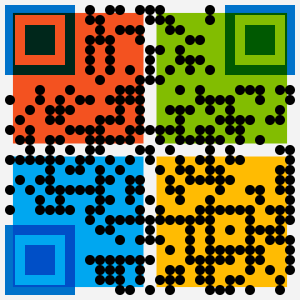
Logo background. The Background Image upload puts a picture behind the whole code and blends the modules over it. You can choose Multiply, Overlay, Darken, Stencil or Classic. Classic lays a white wash over the image and adds an Image Visibility slider from 10% to 60%. Whenever a background image is set, the generator switches the code to error correction H, because the image lowers contrast across every module rather than in one spot.
Advertisements
Error correction decides how much logo fits
QR codes store extra Reed-Solomon codewords so a reader can recover data that is dirty, torn or covered. The four levels recover roughly 7%, 15%, 25% and 30% of the codewords. Covering modules with a logo uses up part of that budget before the code ever gets scuffed or printed on a curved cup.
The rendering library we use, qr-code-styling, turns that into a hard limit. It lets the logo hide at most 40% of the recovery share, measured in modules, and never lets the logo area reach the three finder squares in the corners. The table shows the cap and what it means for a 30-character URL, which needs a larger version at higher levels.
| Level | Recovers about | Max logo area | Example: 30-character URL |
|---|---|---|---|
| L | 7% | 2.8% of modules | Version 2, 25 x 25: up to 17 modules |
| M | 15% | 6% of modules | Version 3, 29 x 29: up to 50 modules |
| Q | 25% | 10% of modules | Version 3, 29 x 29: up to 84 modules |
| H | 30% | 12% of modules | Version 4, 33 x 33: up to 130 modules |
In practice this means two things. First, the logo is drawn noticeably larger at H than at L, because the cleared block grows with the level. Second, the remaining margin is what protects the printed code from wear, glare and low-end cameras, so a code that scans on your monitor can still fail on a sticker. The generator defaults to M and shows a scan risk warning when a logo is added at anything below H. Switch it in the Size tab.
We measured it. We generated the same link at each level with our /api/qr endpoint, covered the center with a growing square the way a logo does, and checked each result with jsQR, the open-source decoder behind our decode and scanner tools. Level H still decoded with 19% covered, M only up to 7%, and L up to 4%. Phone cameras use other decoders, so treat these as relative results. See the full test.
Matching the code to your brand colors
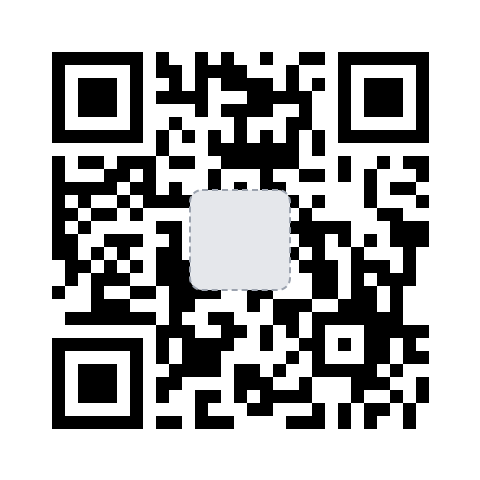
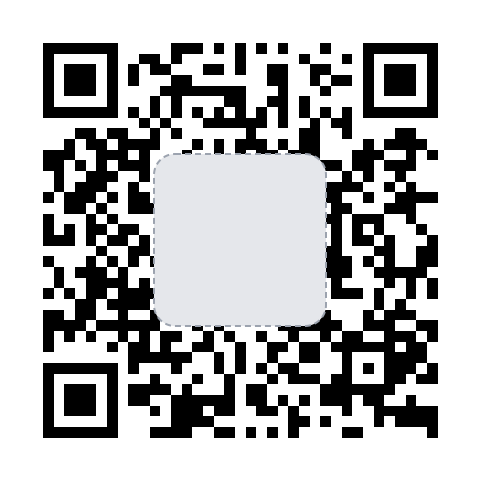
When a logo is added, the page draws it onto a 48 x 48 pixel canvas, skips transparent and near-white pixels, groups similar colors and shows the six most common ones under "Brand colors from your logo". Click a swatch to use it for the dots.
Match QR to logo goes a step further. It sets the dots to the swatch with the highest contrast ratio against your background color, and the corner eyes to the most saturated swatch that still has at least 2.5:1 contrast. If the dot color ends up below 3:1, a message suggests keeping error correction at H. Dark dots on a light background remain the safest combination.
The Remove BG button helps logos that come with a solid white or colored box. It samples the corners and edge midpoints of the image to find the backdrop color and makes pixels close to it transparent. Check the result: logos that use the backdrop color inside the artwork can lose detail.
Why logo QR codes fail
- Error correction left at L or M. The logo eats most of the recovery budget. Use H.
- Clear space turned off with a busy logo. Dots showing through a detailed logo confuse the reader. Keep clear space on unless the logo is very simple.
- Low contrast colors. A light brand color for the dots on white, or a background image with dark areas under light modules. Check contrast, or pick a darker swatch.
- Circle shape. The circle option clips the corner finder patterns, and the generator warns that most phones will fail to scan it.
- Too much data. Long URLs create small modules, and a logo on a dense code leaves little room for damage. Shorten the link where you can.
- Printed too small. Size the code for the scanning distance with the print size calculator, then run the final file through the reliability checker and a few phones.
For heavier styling than a logo, such as image-shaped dots, see artistic QR codes.
Frequently Asked Questions
Does adding a logo stop a QR code from scanning?
Not if the code has enough error correction to rebuild the modules the logo covers. Set Error Correction to H, keep the logo in the middle, and test the result. The generator shows a scan risk warning whenever a logo is used with a level other than H.
How big can the logo be?
The rendering library caps the area it clears for the logo at 40% of the error correction recovery share: about 2.8% of all modules at L, 6% at M, 10% at Q and 12% at H. That is why the logo is drawn larger when you switch to H.
What file should I upload?
Any image your browser can open, up to 5 MB for a center logo and 10 MB for a background image. A square PNG with a transparent background gives the cleanest result. If your logo has a solid backdrop, try the Remove BG button.
Is my logo uploaded to a server?
No. The file is read in your browser and drawn into the QR code there. Color extraction and background removal also run on a canvas in the page.
Center logo or logo background: which scans better?
A small center logo on dark-on-light modules is the more forgiving option. A background image changes the contrast under every module, so the generator forces error correction to H for it. Test both on real phones before printing.
Can I use brand colors instead of black?
Yes. After you upload a logo, the generator lists up to six colors found in it. Match QR to logo picks the color with the best contrast against your background for the dots and a saturated color for the corner eyes, and warns you if the contrast ratio is below 3:1.